ELFIN calculations are performed using existing geometry and control data.
Here is a brief overview of the operating procedure.
Please read the operation guide (ELFGuide) later on for information on how to create input data.
There are explanations from the elementary level.
Using sample data to check ELFIN operation.
Download the sample data SC and extract it to your desktop.
video Creation of shape files from sample data
Please see the procedure first. Instructions are below.
To start the video, click on the part of the diagram.
Click again to pause and again to restart.
Unzip the downloaded SC.zip and open the folder.
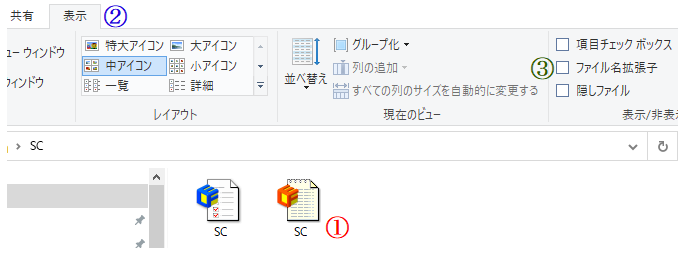
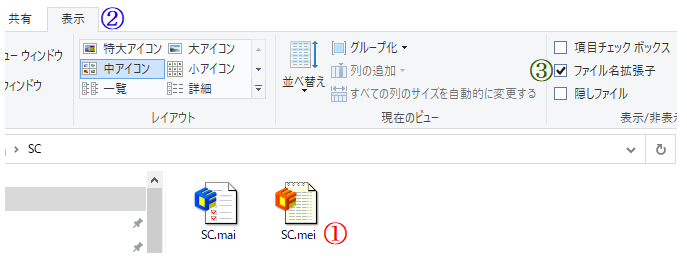
① If Extension is not displayed, ③ Check File name extension in the ②Display tab.
The file name extension is required when using the ELF series.
①The extension .mai .mei was displayed.
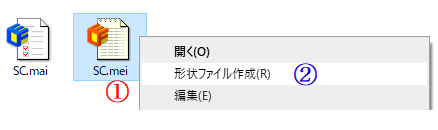
① Right-click the SC.mei icon, then click ② Make Geometry File.
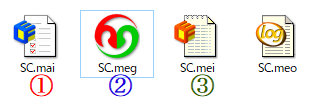
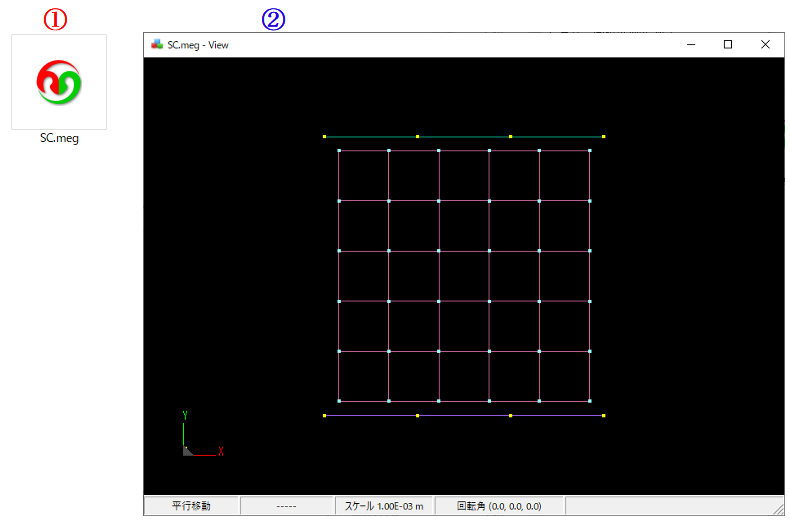
②The SC.meg file has been created. (Shape data was created from the MESH script)
These are ①control file (mai), ②shape file (meg), ③MESH script (mei).
They are sometimes called MAI files, MEG files, or MEI files because of the letters in the extension.
If you get "The code execution cannot continue because the ***.dll is not found." Please click here
The ELF series basically works by right-clicking.
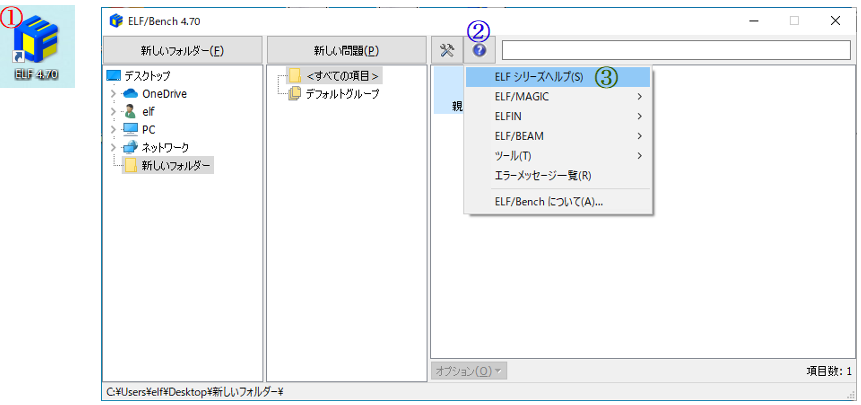
Click on the ELF series icon ① to open ELF/Bench.
ELF/Bench is useful for batch processing and help②③.
Other calculations, such as running calculations, are done by right-clicking, just as in a folder.
Therefore, it is easier not to use ELF/Bench at first.
video Perform calculations and display results
Please see the procedure first. Instructions are below.
Perform calculations and display results
ELFIN calculations can be performed with MEG files (shape data) and MAI files (control data).
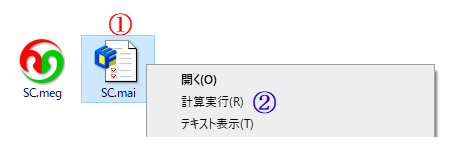
① Right-click the WV.mai icon, then click ② Run Solver.
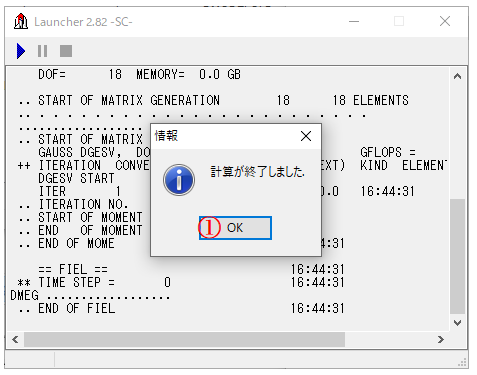
The Launcher screen opens and the calculation is performed by ELFIN.
① Press the OK button.
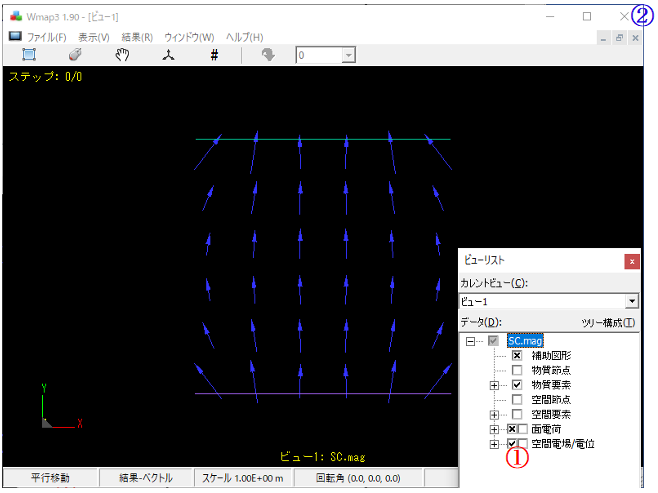
When the calculation is complete, the Wmap3 screen opens and the results are displayed as vectors and contour plots.
① This is a check to draw vectors and contours.
If you get something similar to this diagram, the operation check is complete.
② When you have finished checking, press the Close button marked with an X.
(Please refer to the Wmap Operation Guide or Help for the operation method, etc.)
Generated files
In addition to the shape data (meg) and control data (mai) that were originally included in the calculation, an intermediate generated file necessary for the calculation and a file containing the calculation results are created in the working folder.
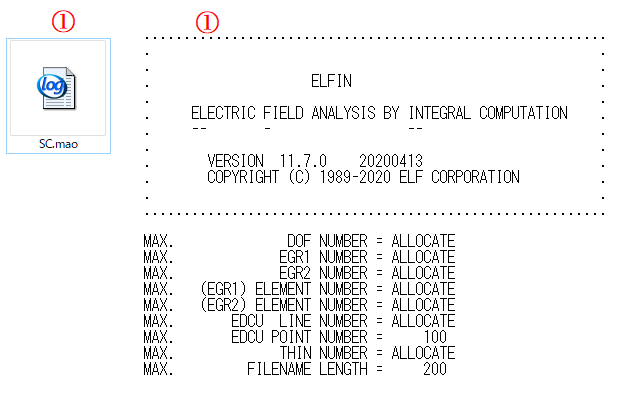
① Important calculation result files are result file (mag) (MAG file) and ② log file (mao) (MAO file).
The log file (mao) is a file that records the log of the progress of calculation and convergence status.
Check the MEG files
① Shape data (meg) (MEG file) contains the shape data of the model.
① Double-click the icon of Shape data (meg) (MEG file).
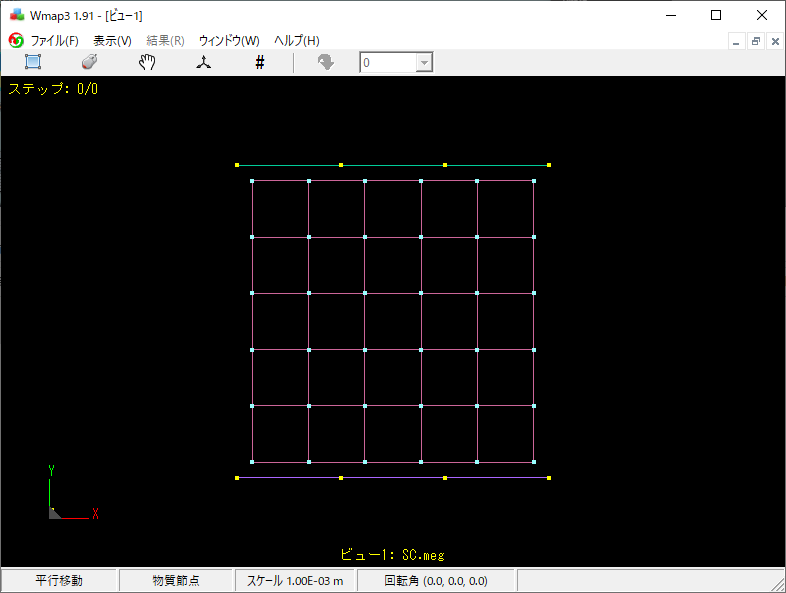
The Wmap3 screen opens to check the shape.
The element shape represented by the SC.meg file.
Check the MAI file
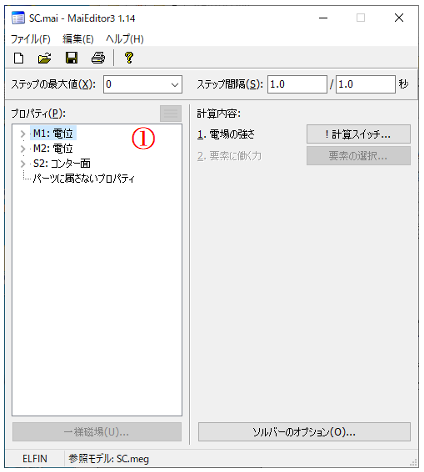
① Control data (mai) (MAI file) contains data specifying the physical properties of the model and the calculation details.
① Double click on the Control data (mai) (MAI file) icon.
The MaiEditor3 screen opens, allowing you to see the physical properties and calculations.
①Double-clicking each property item brings up a settings window where you can check the input values.
(Please read the MaiEditor Operation Guide (ELFGuide) for operating instructions. There are explanations from the rudimentary level).
Check the MAO file
① Double click on Log data (mao) (MAO file) to open it in a text editor.
The log data (mao) (MAO file) contains a summary of the calculation progress.
The contents include checking the control data (mai) (MAI file), the convergence status of the nonlinear calculation, and the approximate charge density of potential elements, etc.
Check if the calculation has been successfully completed.
Check the MAG file .
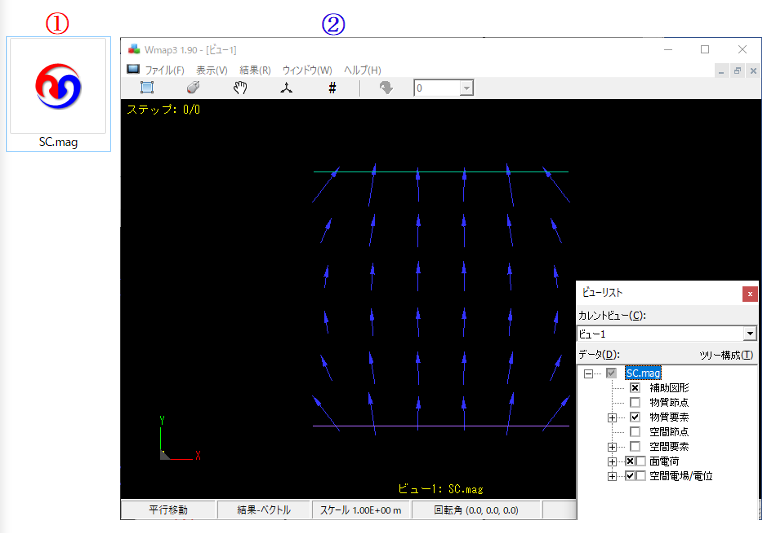
① Double-click the Result data (mag) (MAG file) icon.
② The Wmap3 graphics screen will appear again.
Extracting Results
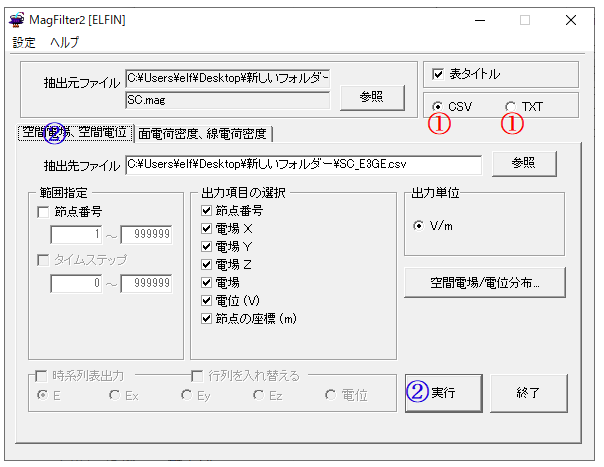
① Right click on the icon for Result data (MAG) (MAG file) then click ② Filtering.
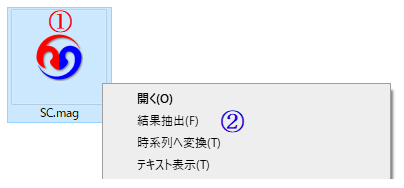
MagFilter2 starts.
① You can choose between CSV format and text format for the file.
② Select the tab of the physical quantity for which you want to know the value and press the Run button.
A file will be created in your working folder.
。
How to create MEG files (shape data)
video How to create MEG files (shape data)
Please see the procedure first. Instructions are below.
How to create a MEG file (shape data) .
Here is a brief overview of the operating procedure.
Please read the IEmesh Operation Guide (ELFGuide) for information on how to create input data. There are explanations from the rudimentary level.
In a new working folder, create the MEG file needed for the calculation.
Create a MEG file using IEmesh.
The input file for IEmesh will be a MESH script (MEI file).
① Right mouse click in the working folder and select Create New > MESH Script.
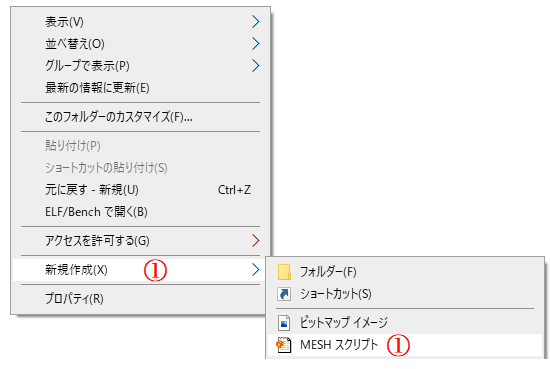
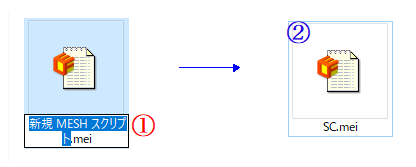
A new MESH script file is created.
①Give the new MESH script (MEI file) the desired name.
②'Double click on the MESH script (MEI file) to open IEmesh.
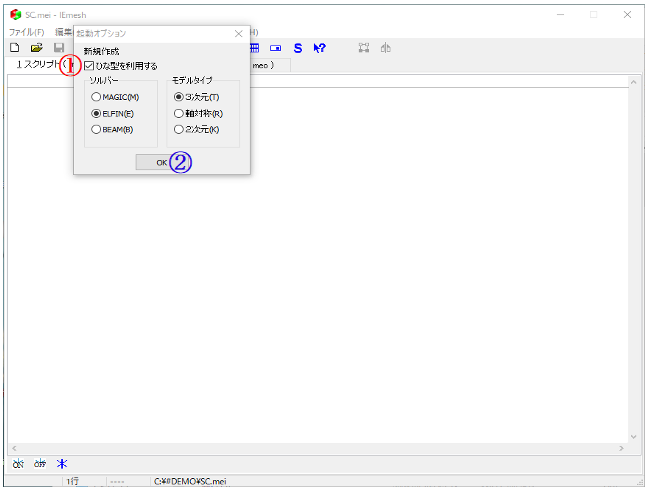
The IEmesh startup options screen opens.
①Check the "Use template" checkbox.
(Here, solver: ELFIN, model type: 3D is selected)
②Click OK.
①A template is entered.
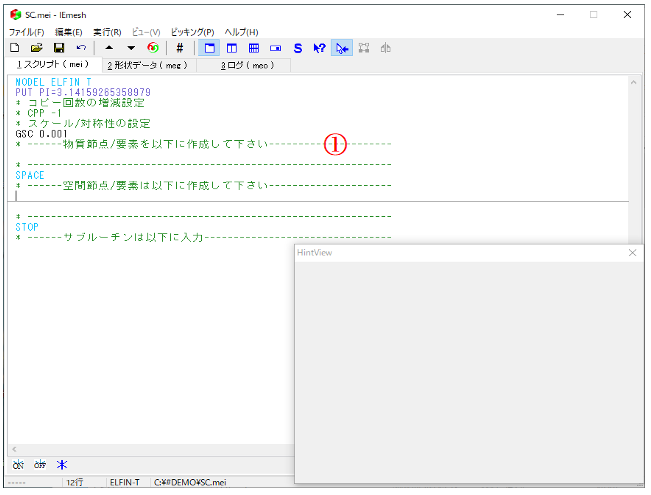
①Enter data.
②Press the Generate Data button. Or press the F1 key''.
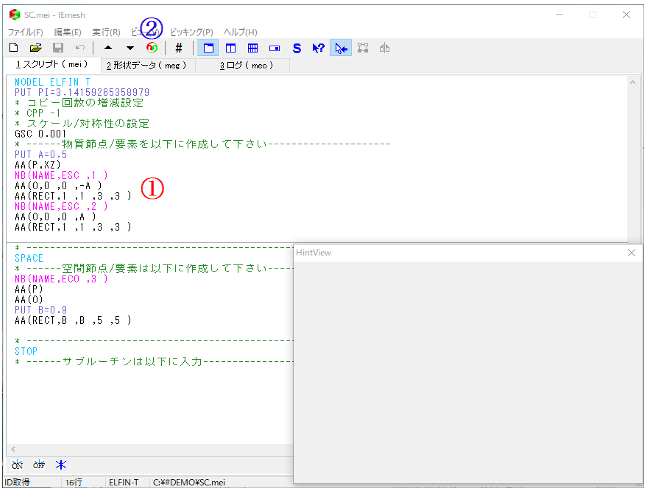
If you get "The code execution cannot continue because the ***.dll is not found." Please click here
① Shape file (MEG file) is created and ② mesh diagram is drawn.
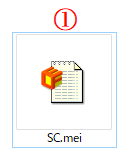
①To modify the MEI file, double-click the icon to open IEmesh.
No startup options will be displayed.
Please refer to the IEmesh Operation Guide or Help for information on how to use IEmesh and its commands.
MEG files can also be converted for ELF in IEmesh by creating nodes and elements in other software.
How to create a MAI file (control data)
video How to create a MAI file (control data)
Please see the procedure first. Instructions are below.
How to create a MAI file (control data) .
Here is a brief overview of the operating procedure.
Please read the MaiEditor Operation Guide (ELFGuide) for information on how to create input data. There are explanations from the rudiments.
The MAI file is created from the MEG file. (MEG file contents will be reflected.)
① Right click on MEG file and click Make Control File.
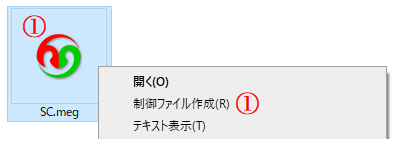
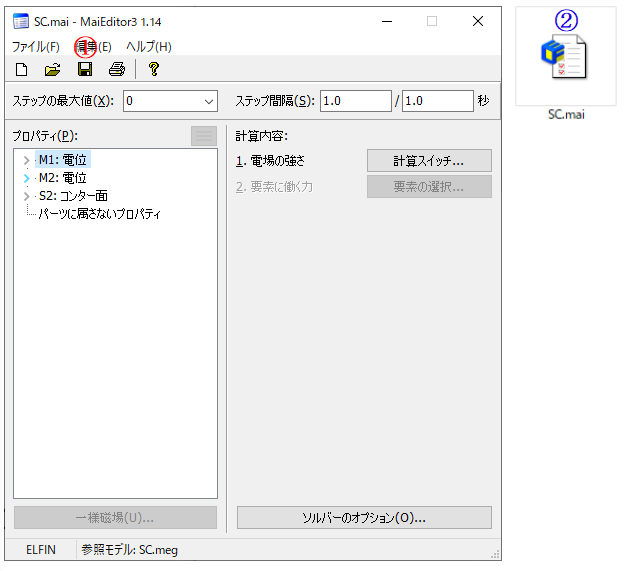
MaiEditor3 screen will open.
Set the input data and press ① Save button to create ② MAI file.
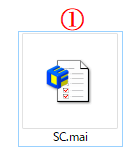
①To modify a MAI file, double-click the icon to open MaiEditor3.
For more information on how to use MaiEditor3, please refer to the MaiEditor3 guide or help.
A series of tasks using ELF/Bench
Here is a brief overview of the operating procedure.
Please read the ELF/Bench Operation Guide (ELFGuide) to learn how to operate the system. There are explanations from the rudimentary level.'
A series of operations up to this point, (mei file creation → meg file creation → mai file creation → calculation execution → result extraction) can also be performed using ELF/Bench.
Double-click the ELF series icon to open ELF/Bench.
In this case, the working folder must be specified.
Or right-click on Working Folder and click Open with ELF/Bench.
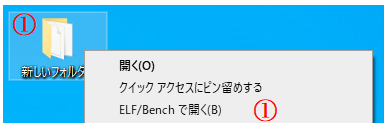
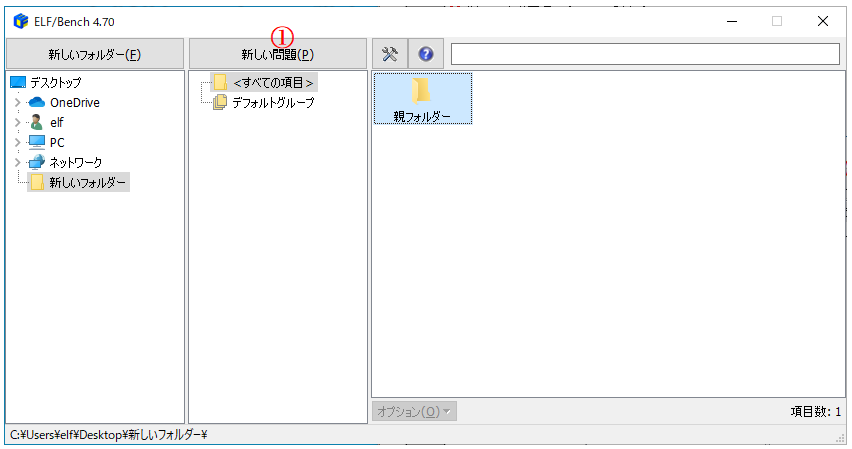
The ELF/Bench screen will open.
①Click on New Problem.
①Enter the desired problem name.
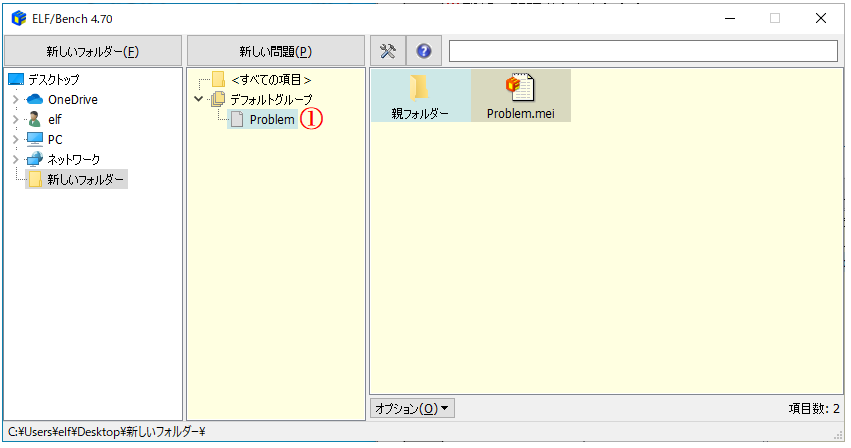
①From this mei file, you can create a meg file, create a mai file, run calculations, extract results, etc., just as you would do in Windows (on Explorer).
Please refer to the ELF/Bench Guide or Help for more information on how to use ELF/Bench.。
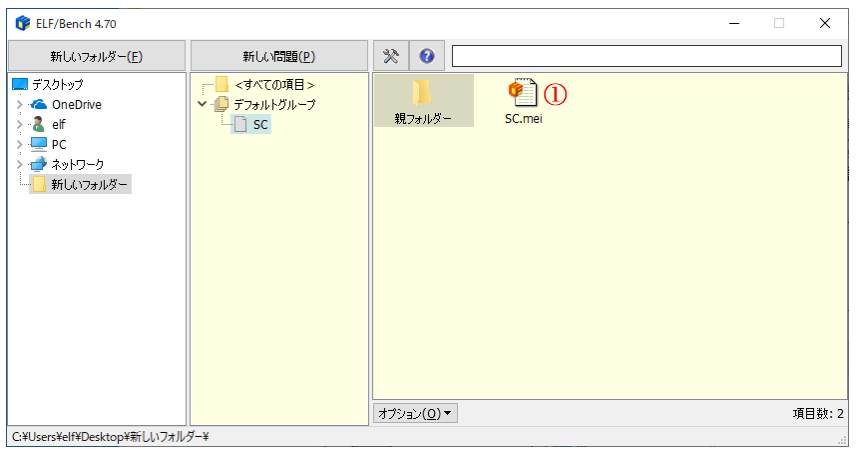
File Composition and Applications .
The following diagram shows the relationship between the files we have dealt with so far and the applications.
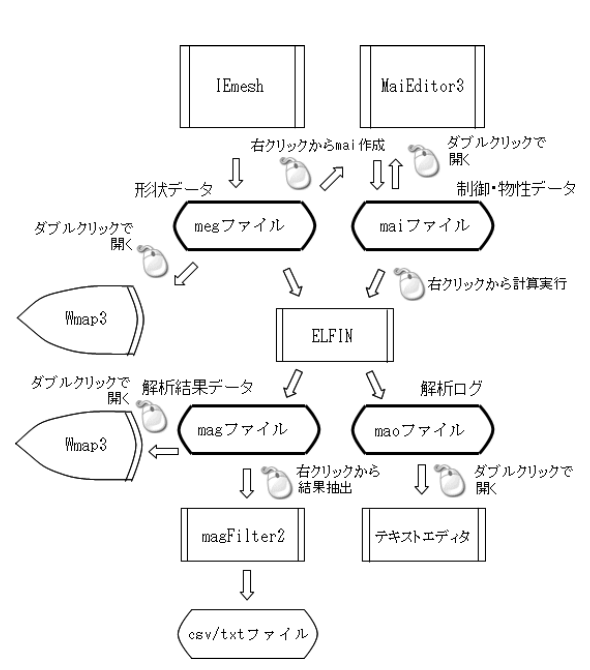
Help file reference
① Double-click the ELF Series icon to open ELF/Bench.
② (?) button, ③ ELF Series Help by clicking ELF Series Help.
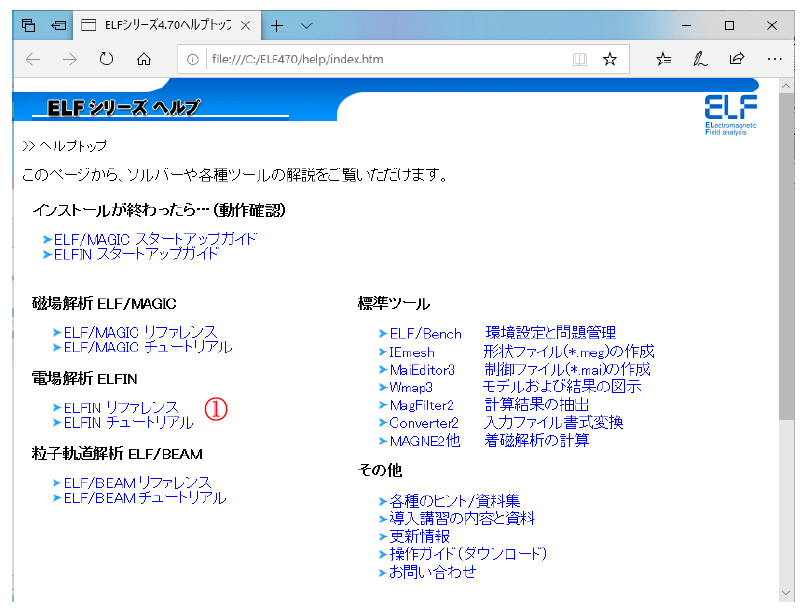
This is the top page of ELF Series Help.
Here is an example of how to access the element names used in the meg file, the header described in the mai file, the various hints/documents collection, and the element name quick reference table.
First, let's access the element name and mai file header.
① ELFIN Reference.
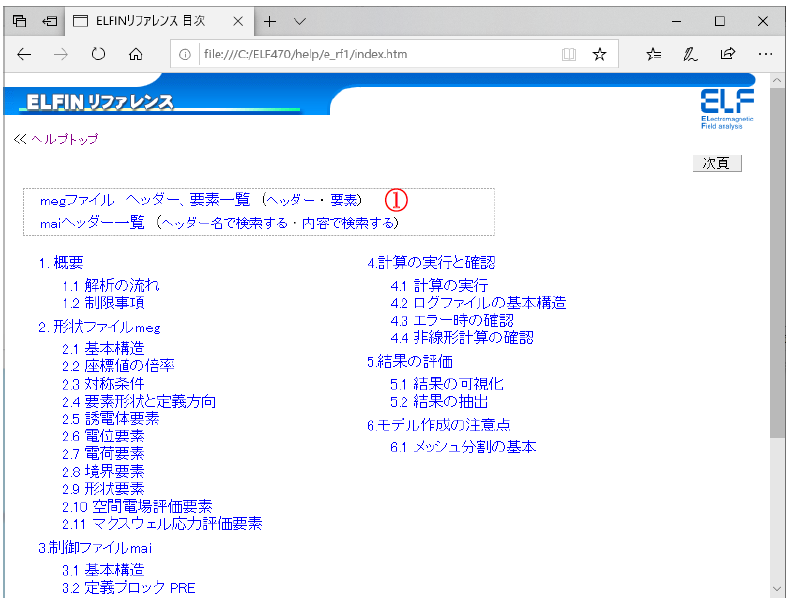
ELFIN Reference page.
①Click on meg file Header and Element List (Header and Element).
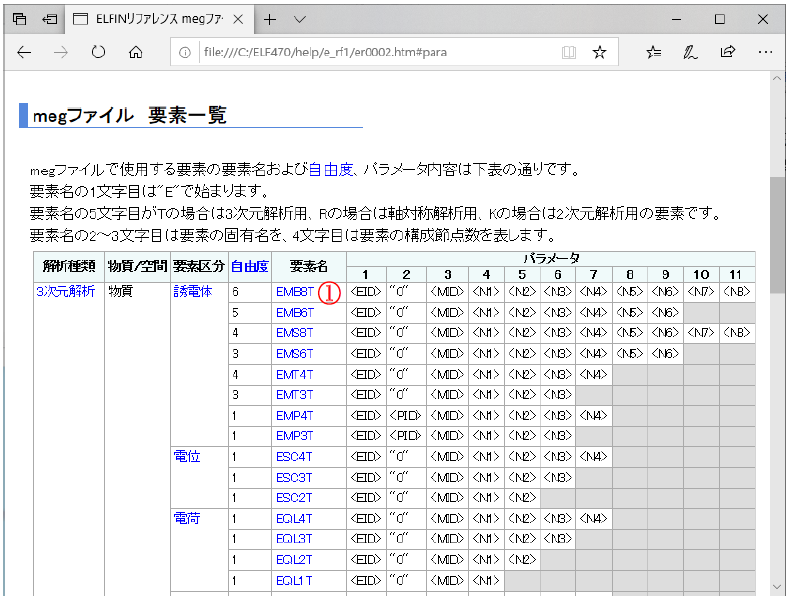
List of meg file elements page.
① Click on Element Name to learn more about each element.
This is a page of detailed element descriptions.
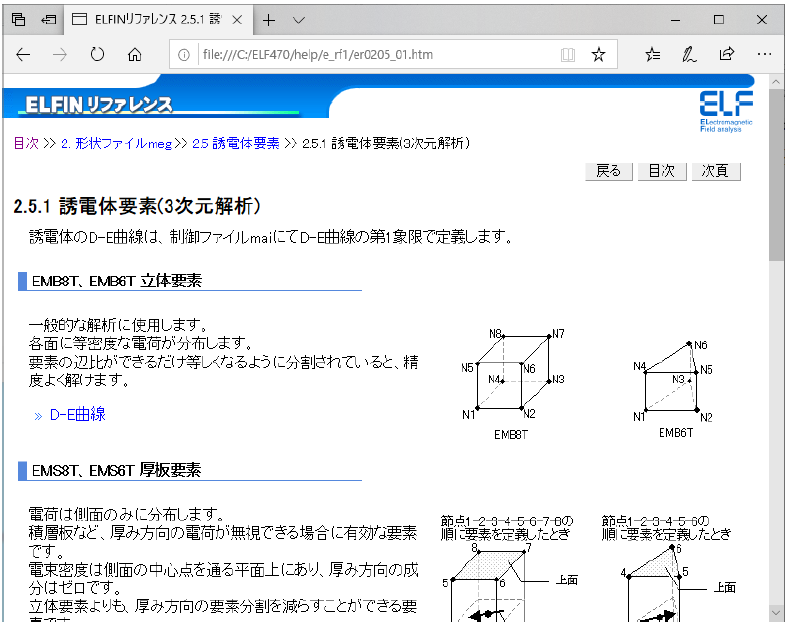
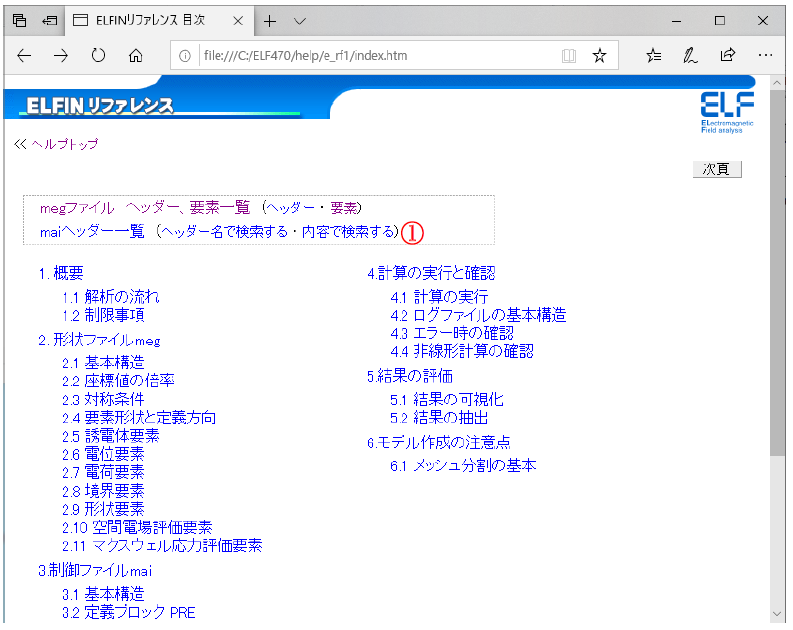
Examine the mai header from the ELFIN reference page.
① Click on mai header list.
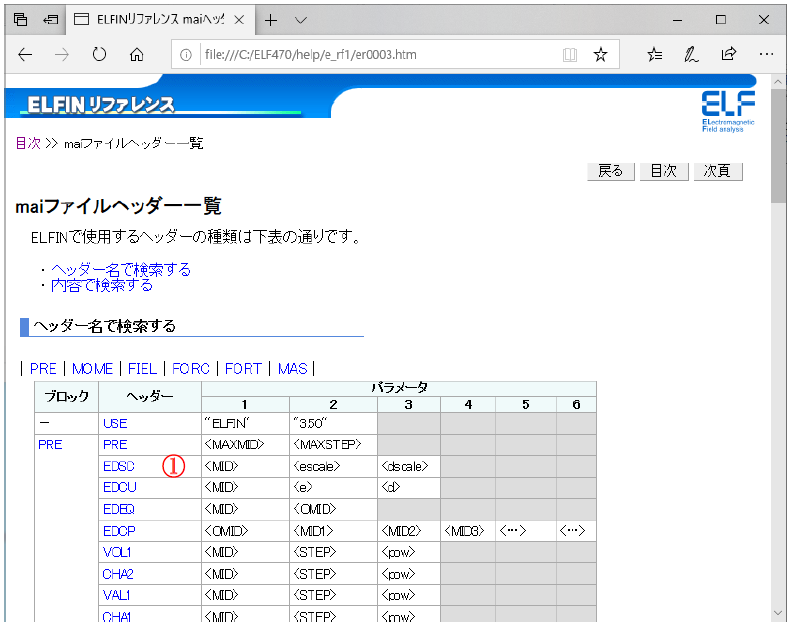
mai file header list page.
① Click on headers to learn more about each header.
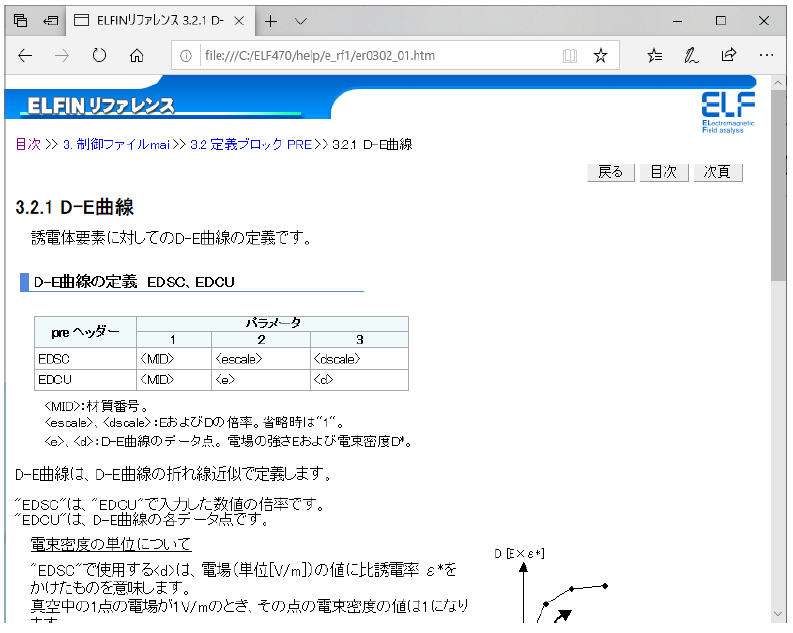
This is the page for detailed description of the header.
a:3585 t:3 y:1